目次の自動ハイライトをCSSで対応する
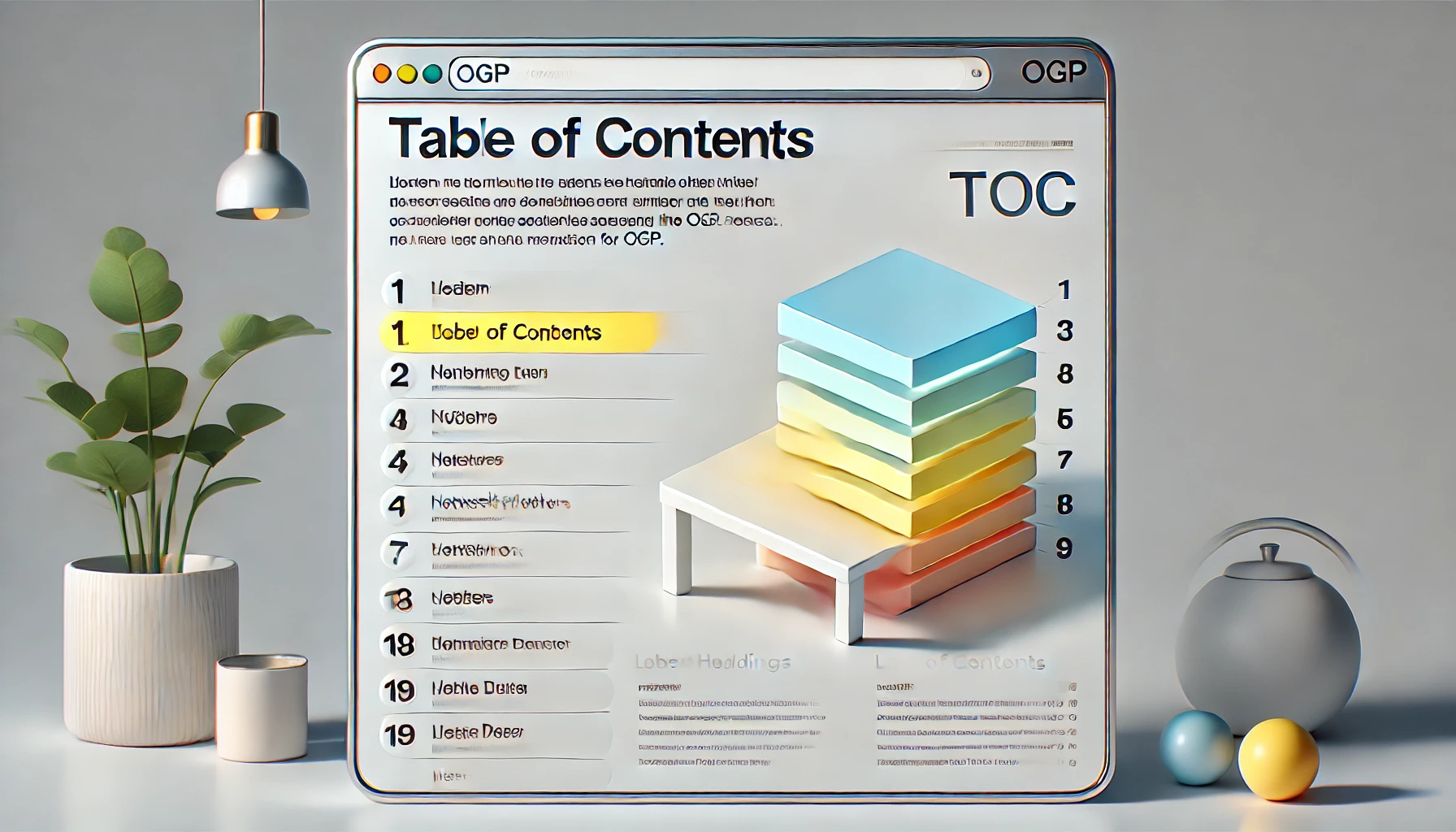
zennなど、昨今テック系のブログ記事では、大体記事の横に目次がついており、表示中の記事に対応して目次の該当項目がハイライトされるようになっています。
非常に見やすいので、これを今回作成するブログサイトでやってみたいと思います。
このブログサイトは HonoX で実装しています。HonoX でのページレンダリングは SSR が主体です。island アーキテクチャにより、クライアントコンポーネントも実装可能ですが、ここでは SSR で実装してみます(以下のようなメリット)
- クライアント側への javascript をダウンロードが必要
- hydration までの待ちがどうしても生じる
ハイライトなどはユーザインタラクションに応じたものになるため、一般的にはクライアントコンポーネントでという考え方になりそうですし、ググって出てくるのも大体はそうなのですが、ここでは CSS だけでなんとかしてみます。
Hono では、応答する jsx に<Style>タグを設定することで、CSS の埋め込みに対応しており、SSR 時に CSS もまとめて返却できるので、クライアントからの無駄なサーバ呼び出しを抑制することができるようです。
クライアントサイド js を使わないとなると、なんらか CSS の枠組みで動的に画面状態を管理し、対応する動きを付ける必要があります。 今回、記事をスクロールする動きに合わせたスタイルの調整のため、scroll 関係での操作を探したところ、以下のような機能があるようなので、これを使ってみます。 CSS での実装が大きく変わる! Scroll-driven Animations スクロールをトリガーにしたアニメーションを実装する方法
<注意> これらの CSS 実装は experimental のステータスにあり、対応ブラウザが限られている他、今後、API 仕様等が変更になる可能性があることに留意してください。
-
ビュー進行状況タイムライン
-
特定の要素が、スクロールによって画面上に入り、どこまで進んだかの進捗割合を示すものです。
-
今回は、ページ中の記事見出(H2 タグや H3 タグ)の要素にこれを設定します。
const cssHeading = css` view-timeline-name: --some-timeline-name; ` -
目次側でこれを参照させます。この進捗度合いに応じたアニメーションのため、目次のハイライトをする keyframe 等 を指定します。
const keyAnimation = keyframes` 50% { color: #4fc2f7f8; } 100% { color: #4fc2f7f8; } `; const cssAnimation = css` animation: ${keyAnimation} ease-in both; animation-timeline: --some-timeline-name; ` -
これだけで動きそうな気がしますが、
cssHeadingを適用する要素とcssAnimationを適用する要素が、Dom ツリー上での祖先の関係にない場合、うまく動作しません。 -
この解決のため、双方の祖先にある Dom 要素で、
timeline-scopeを設定します。const cssScopeContainer = css` timeline-scope: --some-timeline-name; `; -
animation を2種類設定(見出しが現れたときにハイライト、次の見出しが現れたときにグレーに)することで、自然な表示にする
- カンマ区切りで複数設定することが可能です。
const keyAnimation = keyframes`
  50% {
    color: #4fc2f7f8;
  }
  100% {
    color: #4fc2f7f8;
  }
`;
  const keyAnimation2 = keyframes`
  80% {
    color: gray;
  }
  100% {
    color: gray;
  }
`;

const cssAnimation = css`
  animation: ${keyAnimation} ease-in both, ${keyAnimation2} ease-in both;
  animation-timeline: --some-timeline-name, --some-timeline-name2;
`
-
-
mdx のカスタムコンポーネントで、view-timeline-name を設定する。
/app/components/mdx/LinkedHeadings.tsx ・・・ export const LinkedH2 = ({ children }: { children: string }) => { return LinkedHeading({ as: "h2", children }); }; export const LinkedH3 = ({ children }: { children: string }) => { return LinkedHeading({ as: "h3", children }); }; const LinkedHeading = ({ as: CustomTag, children, }: { as: keyof JSX.IntrinsicElements; children: string; }) => { const value = children; const cssHeadingTL = css` ${cssHeading} view-timeline-name: ${"--" + value.replace(/\s+/g, "")}; `; return ( <CustomTag id={value} class={cssHeadingTL}> <a class={cssInnerAnchor} href={`#${value}`}> {children} </a> </CustomTag> ); };/app/components/mdx/index.ts import type { MDXComponents } from "mdx/types"; import { LinkedH2, LinkedH3 } from "./LinkedHeadings"; import { AdjustedImg } from "./AdjustedImg"; export function useMDXComponents(): MDXComponents { return { h2: LinkedH2, h3: LinkedH3, }; } -
上位要素に
timeline-scopeを設定します。/app/routes/posts/_renderer.tsx export default jsxRenderer(({ children, frontmatter }) => { if (!frontmatter) throw new Error("frontmatterがありません"); const headerTitle = frontmatter.title; const bodyTitle = "[" + frontmatter.date + "] " + frontmatter.title; // Hタグから必要な情報を抽出する const tocRecords = extractHTags(children as JSXNode); const cssScopeContainer = css` timeline-scope: ${tocRecords .map((rec) => rec.timeline) .filter((rec) => rec) .join(",")}; `; return ( <html lang="en"> <head> <meta charset="utf-8" /> <meta name="viewport" content="width=device-width, initial-scale=1.0" /> <title>{headerTitle}</title> <link rel="icon" href="/favicon.ico" /> <Script src="/app/client.ts" async /> <Style /> </head> <body class={cssBody}> <div class={cssScopeContainer}> <div class={cssLayoutContainer}> <div class={cssLayoutHeader}> <menu class={cssMenu}> <a href="/">home</a> </menu> <header class={cssHeader}> <h1 class={cssTitle}>{bodyTitle}</h1> </header> <div class={cssHeaderBackground} /> </div> <main class={cssLayoutMain}> <PostPage>{children}</PostPage> </main> <nav class={cssLayoutNav}> <div class={cssToc}> <Toc tocRecords={tocRecords} /> </div> </nav> </div> </div> </body> </html> ); }); const extractHTags = (children: JSXNode) => { type CustomMdx = Omit<JSXNode, "tag"> & { tag: Function }; const headings = children.children.filter((child) => { if (child && typeof child === "object" && "tag" in child) { return typeof child.type === "function"; } return false; }) as CustomMdx[]; return headings.map((heading, idx, arr) => { return { tag: heading.tag, id: heading.children[0] as string, text: heading.children[0] as string, // timeline名には、"--"を付ける必要がある timeline: (("--" + arr[idx].children[0]) as string).replace(/\s+/g, ""), }; }); };- 目次に timeline への参照と animation を設定します。
/app.components/posts/Toc.tsx import { css, keyframes } from "hono/css"; import { FC } from "hono/jsx"; import { LinkedH2 } from "./mdxComponents/LinkedHeadings"; const keyAnimation = keyframes` 50% { color: #4fc2f7f8; } 100% { color: #4fc2f7f8; } `; const keyAnimation2 = keyframes` 80% { color: gray; } 100% { color: gray; } `; const cssTocTitle = css` padding-left: 1em; font-weight: bold; `; const cssTocUl = css` padding-left: 1em; &::before { content: ""; position: absolute; top: 64px; bottom: 24px; left: 28px; width: 1px; background-color: #b4ebfc; } li { color: #00022cf8; margin-bottom: 0em; margin-left: 0; line-height: 1.5em; text-align: left; position: relative; list-style: none; } `; const cssLiH2 = css` font-size: 1em; padding-left: 2em; font-weight: bold; &::before { content: ""; display: block; position: absolute; top: 6px; left: 5px; width: 11px; height: 11px; border: solid 1px #b4ebfc; background-color: #4fc2f7f8; } `; const cssLiH3 = css` font-size: 0.9em; padding-left: 2.2em; &::before { content: ""; display: block; position: absolute; top: 10px; left: 7px; width: 6px; height: 6px; border: 1px solid #b4ebfc; background-color: #ffffff; } `; const cssTocContainer = css` border: solid 2px transparent; border-radius: 10px; padding-right: 1em; a { color: inherit; text-decoration: none; } `; type TocProps = { tocRecords: { tag: Function; id: string; text: string; timeline: string; }[]; }; export const Toc: FC<TocProps> = ({ tocRecords }) => { return ( <div class={cssTocContainer}> <p class={cssTocTitle}>【Index】</p> <ul class={cssTocUl}> {tocRecords.map((rec, idx, arr) => { const cssAnimation = idx < arr.length - 1 ? css` animation: ${keyAnimation} ease-in both, ${keyAnimation2} step-end both; animation-timeline: ${rec.timeline + ", " + arr[idx + 1].timeline}; ` : css` animation: ${keyAnimation} ease-in both; animation-timeline: ${rec.timeline}; animation-composition: replace; `; const cssLiH2TL = css` ${cssAnimation} ${cssLiH2} `; const cssLiH3TL = css` ${cssAnimation} ${cssLiH3} `; return ( <li class={rec.tag === LinkedH2 ? cssLiH2TL : cssLiH3TL}> <a href={"#" + rec.id}>{rec.text}</a> </li> ); })} </ul> </div> ); };
CSS のみを用いて、目次のハイライト表示を実現しました。
- 記事中の H2/H3 タグに
view-timeline-nameを設定しました。 - 目次に、それらの
view-timeline-nameを参照する形でanimation,animation-timelineを設定しました。 - 記事と目次が DOM の祖先の関係にないため、親要素で
timeline-scopeを設定しました。
- コメント -
- 関連記事 -
- 記事検索 -
このサイトではcookieを利用して、サイト訪問者の識別に利用します。 cookieの利用に同意いただくことで、サイト訪問者は記事のいいね機能等をご利用いただけます。 なお、サイト運営者はアクセス統計としてcookieの情報を利用する場合があります。